
Tag: VPS Sizing

  • 1 GB vs 2 GB vs 4 GB VPS: Which Plan Fits Your Workload?

    1 GB vs 2 GB vs 4 GB VPS: Which Plan Fits Your Workload?

    Choosing the right VPS size is one of the biggest decisions for cost and stability. This guide compares 1 GB, 2 GB and 4 GB NVMe VPS plans using practical workloads instead of generic specs.

    Quick decision table

    Plan Best for Main risk Upgrade signal
    1 GB RAM VPN, static sites, tiny APIs Low memory headroom Frequent swap or RAM over 85 percent
    2 GB RAM WordPress, small production apps Worker contention at peaks Queue lag, plugin-heavy workloads
    4 GB RAM Higher concurrency, multi-service stacks Higher monthly cost Needed when 2 GB stays saturated

    1 GB VPS profile

    A 1 GB plan is ideal when you keep the stack lean and predictable. It works best for low-traffic services and utility workloads.

    2 GB VPS profile

    For most small production apps, 2 GB is the safest default. You get enough memory for caching, moderate concurrency, and cleaner deployments.

    4 GB VPS profile

    Move to 4 GB when your project is already proven and bottlenecks are recurrent, not occasional.

    How to decide in 10 minutes

    1. List always-on services and estimated peak memory.
    2. Check expected concurrency and background jobs.
    3. Start one tier higher if your business cannot tolerate slowdowns during spikes.

    Benchmark reference

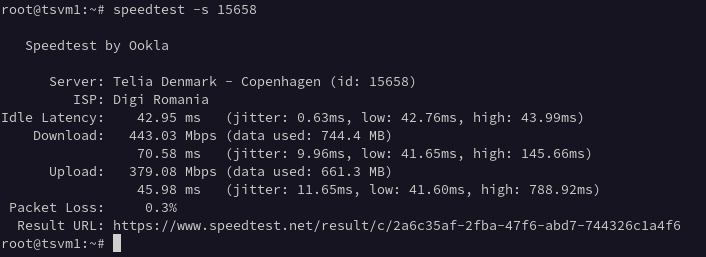
    Before buying, check real measurements from the same infrastructure: NVMe VPS Romania benchmarks.

    FAQ

    Is 1 GB enough for production?

    Yes for lean workloads. For plugin-heavy WordPress or multi-service setups, 2 GB is usually safer.

    When should I jump from 2 GB to 4 GB?

    When monitoring shows sustained high RAM usage, queue lag, or repeated swap under normal traffic.

    Which plan gives best price-performance?

    For many small production projects, 2 GB offers the strongest balance between cost and stability.
    More decision guides

  • Cheap VPS Romania: How to Choose an NVMe Plan Without Overpaying

    Cheap VPS Romania: How to Choose an NVMe Plan Without Overpaying

    Budget VPS plans can be excellent if you choose based on workload, not only monthly price. This guide helps you select a cheap NVMe VPS in Romania while keeping enough headroom for real traffic.

    What to evaluate before price

    • Storage type: NVMe changes responsiveness for app and database workloads.
    • CPU generation and contention risk under peak usage.
    • Local latency for your user base.
    • Clear, simple upgrade path when demand increases.

    Common low-cost mistakes

    • Buying minimum RAM for production WordPress.
    • Ignoring background jobs and cron impact.
    • No monitoring, then upgrading only after incidents.
    • Over-buying from day one without validated demand.

    Plan sizing pattern that works

    Start with 1 GB only for lean and predictable workloads. Use 2 GB as default for most production web apps. Move to 4 GB when real monitoring data confirms sustained pressure.

    Validation checklist before launch

    free -m
    vmstat 1 5
    iostat -x 1 3
    curl -I https://your-domain
    
    • Keep RAM below saturation during normal traffic.
    • Watch swap behavior during updates and backup windows.
    • Validate response time from user-relevant regions.

    Related guides

    FAQ

    What is the best cheap VPS plan for starting a project?

    For many production workloads, 2 GB is the safest start. Use 1 GB only when the stack is intentionally minimal.

    Is NVMe worth it on budget plans?

    Yes. NVMe improves I/O-heavy tasks like package installs, cache warmups, and database operations.

    How do I avoid overpaying?

    Start with measured requirements, monitor usage weekly, and scale only when metrics confirm sustained pressure.

    Related comparison guides

  • WordPress VPS Romania: Setup, Sizing, and Performance Checklist

    WordPress VPS Romania: Setup, Sizing, and Performance Checklist

    Running WordPress on a VPS gives you control, but sizing and tuning mistakes can quickly hurt speed and uptime. This guide covers a practical setup baseline for Romania-hosted NVMe VPS instances.

    Recommended starting point

    For most production WordPress sites, start at 2 GB RAM with NVMe storage. This leaves headroom for plugins, caching, updates, and traffic bursts.

    Secure baseline stack

    • Nginx + PHP-FPM with conservative worker settings.
    • MariaDB tuned for realistic memory limits.
    • TLS via certbot and strict firewall rules.
    • Backups and restore testing, not backups only.

    Performance checklist

    • Enable page/object caching where appropriate.
    • Audit plugins and remove non-essential add-ons.
    • Track RAM usage and swap behavior after plugin updates.
    • Run regular DB optimization and slow query checks.

    When to scale up

    • Admin panel feels slow during normal activity.
    • RAM stays high during routine traffic.
    • Background jobs compete with front-end response time.

    If these persist after tuning, move to 4 GB and re-test.

    Upgrade options

    Related articles

    FAQ

    Is 1 GB enough for WordPress?

    Only for very light sites. For most production use cases, 2 GB is more reliable.

    How often should I review performance?

    Weekly for active websites and after every major plugin or theme change.

    What matters most for WordPress speed?

    Balanced RAM headroom, NVMe storage, clean plugin set, and cache discipline.

    Related buying guides

  • 2 GB NVMe VPS: Best Value for Small Production Apps

    2 GB NVMe VPS: Best Value for Small Production Apps

    For most small production workloads, a 2 GB NVMe VPS is the best balance between price and headroom. On TinyServers nodes in Bucharest (Ryzen 5700G + NVMe), 2 GB gives you enough memory to avoid constant swapping while keeping monthly cost low.

    If your current project is outgrowing 1 GB but does not yet justify a larger dedicated setup, this is usually the safest default plan.

    Who should start with 2 GB RAM

    • WordPress websites with a cache plugin, security plugin, and regular admin activity.
    • Small API services (Node, Python, PHP) with 2 to 4 workers.
    • App plus database combinations such as Nginx + PHP-FPM + MariaDB.
    • Two to four lightweight Docker containers without aggressive memory spikes.

    Practical memory budget (realistic, not theoretical)

    A common 2 GB stack often looks like this in production:

    • Operating system and base services: 250 to 350 MB.
    • Nginx + PHP-FPM or app runtime: 300 to 600 MB, depending on traffic.
    • Database (MariaDB or PostgreSQL): 250 to 500 MB.
    • Cache layer (Redis or OPcache growth): 100 to 250 MB.
    • Safety margin for spikes, deployments, cron jobs: 300 to 500 MB.

    On a 1 GB plan, this same stack often starts swapping during traffic bursts or plugin updates. On 2 GB, the same workload has room to breathe.

    Why 2 GB feels much faster than 1 GB

    • Less swap activity means lower latency on admin pages and API responses.
    • More cache headroom reduces CPU cycles per request.
    • Background tasks (backups, workers, cron) stop competing as aggressively with web traffic.
    • Deployments are less risky because package updates and restarts have memory margin.

    Reference setup for a 2 GB production VPS

    # Example baseline stack
    Nginx
    PHP-FPM (pm=ondemand or carefully tuned dynamic)
    MariaDB (small buffer pool first, then tune)
    UFW + fail2ban
    Optional: Redis for object cache
    

    Use conservative service limits first, then raise them only when monitoring confirms sustained demand.

    Monitoring checklist (weekly)

    free -m
    vmstat 1 5
    top -o %MEM
    df -h
    iostat -x 1 3
    
    • If memory usage stays above 85 percent for long periods, review worker limits and cache settings.
    • If swap grows during normal load, tune or upgrade before performance degrades.
    • If queue jobs are delayed, evaluate CPU contention and move to a higher vCPU plan.

    When to upgrade from 2 GB to 4 GB

    • RAM remains above 85 to 90 percent after optimization.
    • You run WooCommerce or multiple WordPress plugins with heavy admin usage.
    • You host multiple containers with scheduled jobs and concurrent requests.
    • You need smoother behavior during traffic peaks, imports, and backups.

    Recommended TinyServers plans

    Related reading

    Quick FAQ

    Is 2 GB enough for WordPress in production?

    Yes, for many small and medium sites, especially with caching and reasonable plugin discipline.

    Can I run Docker on 2 GB?

    Yes, if containers are lightweight and memory limits are configured. Unbounded containers can still exhaust RAM.

    Should I upgrade to 4 GB now or later?

    Start with 2 GB if usage is moderate. Upgrade when monitoring shows sustained memory pressure or queue lag.

    Data-driven sizing examples

    Workload Typical traffic profile 2 GB fit Upgrade trigger
    WordPress company site Low to moderate, daytime peaks Very good Plugin-heavy pages and frequent editor usage
    Small SaaS API Steady requests with background jobs Good Queue growth and worker contention
    Docker micro stack 2 to 4 small services Good with limits OOM kills or sustained swap growth

    Pre-upgrade checklist (before moving to 4 GB)

    1. Cap worker counts and verify memory profile over 7 days.
    2. Enable object cache and verify hit ratio improvement.
    3. Review slow queries and remove unused plugins or modules.
    4. Measure peak-hour latency before and after tuning.

    If these optimizations do not reduce memory pressure, a 4 GB upgrade is justified and usually delivers immediate stability gains.

    Plan Comparison Hub

  • Cheap 1 GB VPS Use Cases and When to Upgrade

    Cheap 1 GB VPS Use Cases and When to Upgrade

    A 1 GB RAM NVMe VPS is still a strong option for lean workloads. If you keep the stack simple, optimize memory limits, and avoid plugin bloat, a 1 GB plan can run reliably and cheaply.

    This guide shows what fits well on 1 GB, what usually fails, and how to know exactly when moving to 2 GB is the right business decision.

    What runs well on a cheap 1 GB VPS

    • WireGuard VPN, SSH jump hosts, bastion and internal tooling.
    • Static websites (Nginx, Caddy, Hugo) and landing pages.
    • Small APIs and bots (FastAPI, Flask, Node micro services).
    • Lightweight CI helpers, cron jobs, webhooks and monitoring agents.
    • Developer playground environments with one main process at a time.

    Memory budget example for 1 GB

    • Operating system baseline: 180 to 260 MB.
    • Web server and runtime: 200 to 350 MB.
    • Small database or cache: 150 to 250 MB.
    • Safety margin: 150 to 250 MB.

    With careful tuning, this can work. Without tuning, 1 GB gets unstable quickly under concurrent requests.

    Minimal production stack (lean and stable)

    sudo apt update
    sudo apt install -y nginx ufw fail2ban
    # Add only what you need next: runtime, database, certbot
    

    Start small. Add services only after measuring resource impact.

    Optimization checklist before you upgrade

    • Use one web stack only (for example Nginx + PHP-FPM) and remove unused services.
    • Reduce worker counts to match real traffic.
    • Enable caching where possible.
    • Disable plugins, modules, and daemons you do not use.
    • Set alerts for RAM usage, swap growth, and disk pressure.

    When 1 GB is no longer enough

    • RAM is consistently above 85 percent during normal traffic.
    • Swap increases daily even after service tuning.
    • WordPress admin becomes slow with multiple plugins.
    • Background jobs delay user-facing requests.
    • You need two or more containers running all the time.

    Upgrade path that avoids downtime

    1. Lower DNS TTL to 300 seconds before migration day.
    2. Provision a 2 GB VPS and prepare the same runtime versions.
    3. Sync files and database, test with hosts override.
    4. Switch DNS and monitor logs for 24 to 48 hours.

    Detailed migration walkthrough: Migrate a 20i VPS to TinyServers NVMe with Zero Downtime.

    Recommended plans

    Related reading

    Quick FAQ

    Can I run WordPress on 1 GB?

    Yes, for simple websites with strict plugin control. Heavier themes or WooCommerce usually need 2 GB.

    Is 1 GB enough for Docker?

    For one or two tiny containers, yes. For multiple always-on containers with queues, upgrade to 2 GB.

    What is the biggest mistake on 1 GB?

    Running too many services at once without memory limits and monitoring.

    Three practical 1 GB deployment patterns

    1) VPN and secure access node

    WireGuard plus a hardened SSH setup is an excellent low-cost use case. Memory usage stays predictable and performance is consistent.

    2) Static marketing site + status page

    Nginx serving static content with TLS and basic monitoring can run for months with very low resource usage.

    3) Lightweight webhook worker

    A single runtime process that handles webhooks, queues small jobs, and writes minimal logs can fit comfortably on 1 GB.

    Cost control and reliability tips

    • Pin package versions for critical services to avoid surprise memory jumps.
    • Rotate logs aggressively to protect disk and memory cache behavior.
    • Use simple health checks and automatic restart policies.
    • Document a clear upgrade runbook before traffic growth arrives.

    For teams expecting growth in the next quarter, starting on 2 GB can be cheaper than repeated firefighting on 1 GB.

    Intent Hub Links

  • Install WordPress on a 3 EUR NVMe VPS in 15 Minutes

    Install WordPress on a 3 EUR NVMe VPS in 15 Minutes

    Looking for an ultra-affordable NVMe VPS to power a fresh WordPress site? In this step-by-step tutorial you’ll deploy WordPress on the TSVM1NVME10 plan (1 vCPU • 1 GB RAM • 10 GB NVMe • €3.29/mo) in under 15 minutes.

    (more…)